


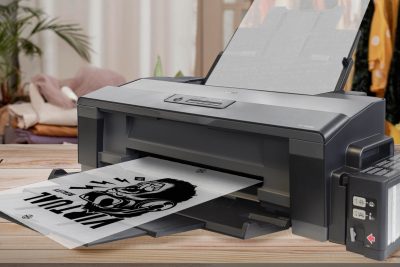
🎨 Four-colour process for screen printing from scratch
🎨 Four-colour process for screen printing from scratch

Four-colour process or colour separation is a printing system that reproduces images using the CMYK model (cyan, magenta, yellow, and black).
We are going to teach you how to do four-colour process for screen printing. It is a somewhat complex technique, but with these practical tips, you will achieve excellent results. With this system, you will be able to print multi-coloured images using 4-5 screens. Let's get started.
ÍNDICE
Choose an appropriate image
There are no limits. Choose any image you like. It doesn't matter if it has many colours. You just need to ensure that it is of high quality to perform colour separation in Photoshop. For this reason, the higher the quality, the more detailed the screen-printed image will be.
Choose the mesh and the ink
Before starting with colour separation, you must choose the mesh you will use. If you're unsure which mesh to select, the post "Screen Printing Meshes: Learn to Choose the Most Suitable One for You" will surely help you. Also, in the category "Screen Preparation" you can find everything you need.
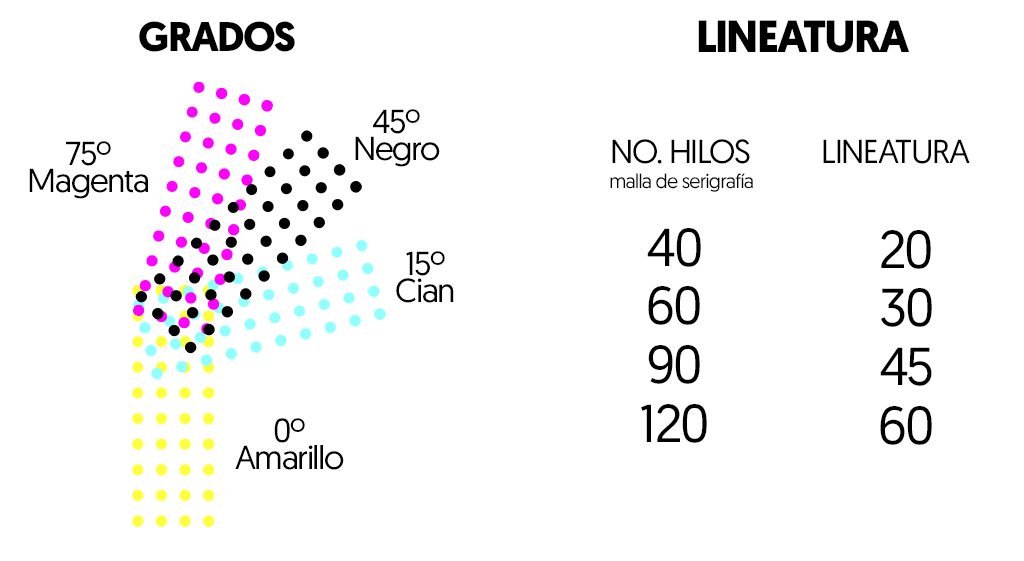
In the stage of separating the colours, you will come across the term “lineature”. This parameter depends on the number of threads in the screen printing mesh you are going to use.
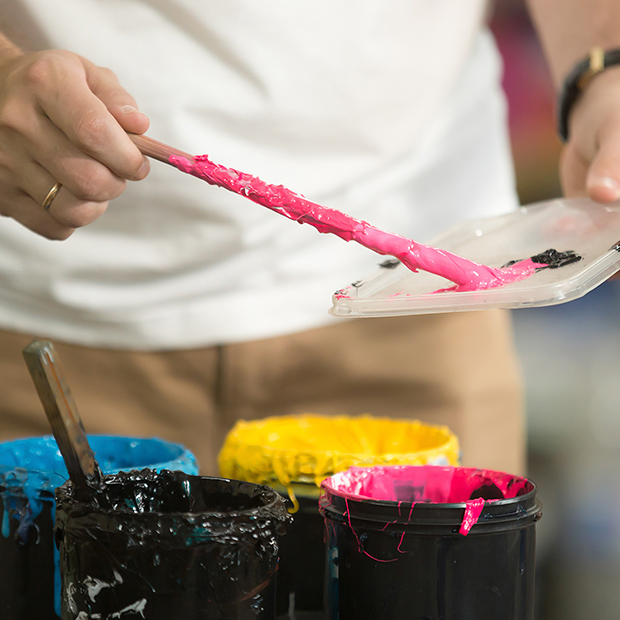
Regarding the ink, use special plastisols for this purpose. At Brildor, you can find the four CMYK colours available in 1 kg or 10 kg containers. You can find all the information and usage tips at: “Plastisol Brildor - Four-Colour Process”.
How to separate colours in four-colour process for screen printing
Before starting to create the four-colour process for screen printing, it is important to consider the colour of the final substrate.
- If the textile or rigid material to be screen printed is light, we will work with four screens. One for the blue (cyan) colour, another for the pink (magenta), one more for the yellow, and finally one for the black.
- If it is dark, we will work with five screens as we add white to create the base.
Comment that the combination of blue, pink, and yellow creates "black." It is not a pure black, which is why this fourth ink is added to enhance this colour and prevent it from becoming a dark brown. Having said that, once you are clear about what you are going to screen print, you should follow these steps:
If it is clear
1. Create a new document in Photoshop: File > New
- Width and height: Select the centimetres that the design will have and add about 3 centimetres more on each side. You will place the registration marks on these edges.
- Resolution: 300 dpi
- Colour mode: CMYK
- Background: White
2. Drag the image into the document and adjust it. Add the registration marks! This will help you align the different layers when screen printing.
3. Go to Channels. Tap the three lines in the top right corner. Select: Split Channels
4. 4 new windows have been created. Close the original file
5. In the Cyan document, go to the menu: Image > Mode > Bitmap
- Resolution: 300 dpi
- Mode: Halftone screen
6. Accept and in the new window Halftone Screen select:
- Line count: Remember that it depends on the number of threads in the mesh you are using. It will always be that number divided by 2. For example, if you use a 90-thread mesh, the line count will be 45; if it's a 120-thread mesh, the line count will be 60.
- Angle: Each colour should be at different degrees. Therefore, you should check the document you are working on and write down the degrees corresponding to each colour: Yellow 0º; Cyan 15º; Black 45º; Magenta 75º
- Shape: round
7. Repeat this process (steps 8 and 9) in all four colours
8. Go back to the cyan document. Navigate to the menu: Image> Mode> Grayscale> Size Factor> 1. Repeat this operation for each document
9. Save and rename the documents with the name of the colour
If it is dark
1. Create a new document in Photoshop: File > New
- Width and height: Select the centimetres that the design will have and add about 3 centimetres more on each side. You will place the registration marks on these edges.
- Resolution: 300 dpi
- Colour mode: CMYK
- Background: Black
2. Drag the image into the document and adjust it. Add the registration marks! This will help you align the different layers when screen printing.
3. Return to the menu: Image > Duplicate. A new document will be created.
- The first document will be used to isolate the colours cyan, magenta, yellow, and black.
- The duplicate document will serve to create the white base. It is very important that it is a duplicate document because, even if done separately, all parts must align.
4. In the first document, follow the instructions for light garments: steps 3 to 9 (from the previous section)
5. Select the second document and go to the menu: Image> Mode> Lab Color. Choose the option Flatten
6. Now go back to Channels. Tap the three lines in the top right corner. Select: Split Channels
7. Three windows have been created. Close the last two (named a and b).
8. In the document Luminosity, go to the menu: Image > Mode > Bitmap
- Resolution: 300 dpi
- Mode: Halftone screen
9. Accept and in the new pop-up window select:
- Line count: Remember that it depends on the number of threads in the mesh you are using. It will always be that number divided by 2. For example, if you use a 90-thread mesh, the line count will be 45; if it's a 120-thread mesh, the line count will be 60.
- Angle: we will use the same one we would use for black, that is, 45 degrees.
- Shape: round
10. Save and rename with the name “White Colour”
Preparation of the film positive and the screen
With the CMYK files prepared, it's time to start the exposure process to create the screens.
Print the photoliths
To print the film positive, you should use black inkjet ink. The aim is to print it as opaquely as possible to prevent UV light from passing through during exposure. This will ensure that the design area does not dry and the emulsion washes away, leaving the mesh open in that area for the ink to pass through.
In the post "Printing film positives affordably from your workshop" you will find all the information: what a film positive is, the printer you need, and how to print it.
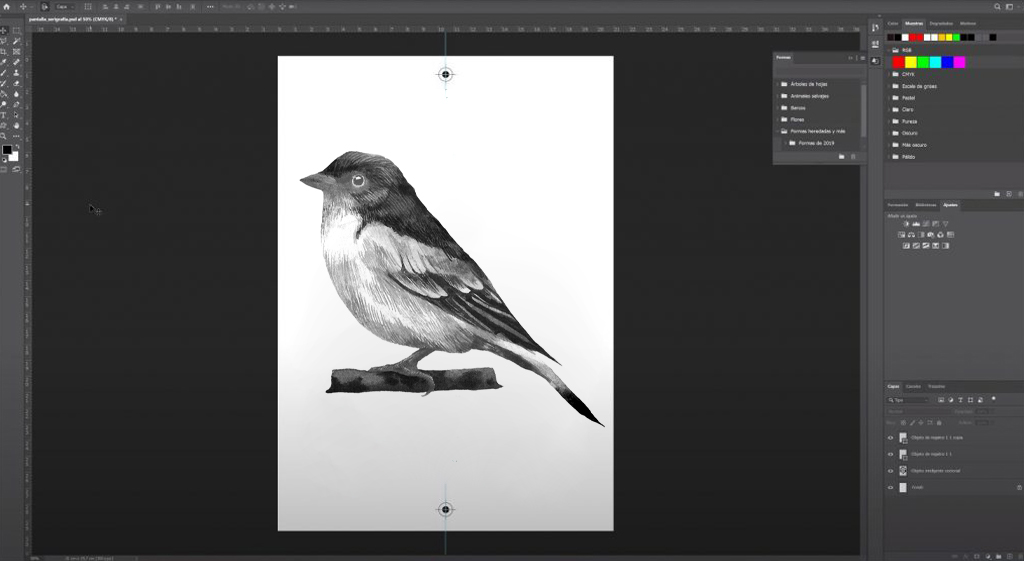
Remember that if you are printing on a light base, you will need to create 4 film positives, one for each colour: cyan, magenta, yellow, and black. If you are screen printing on a dark base, you will need 5 film positives, one for each colour: cyan, magenta, yellow, black, and white.
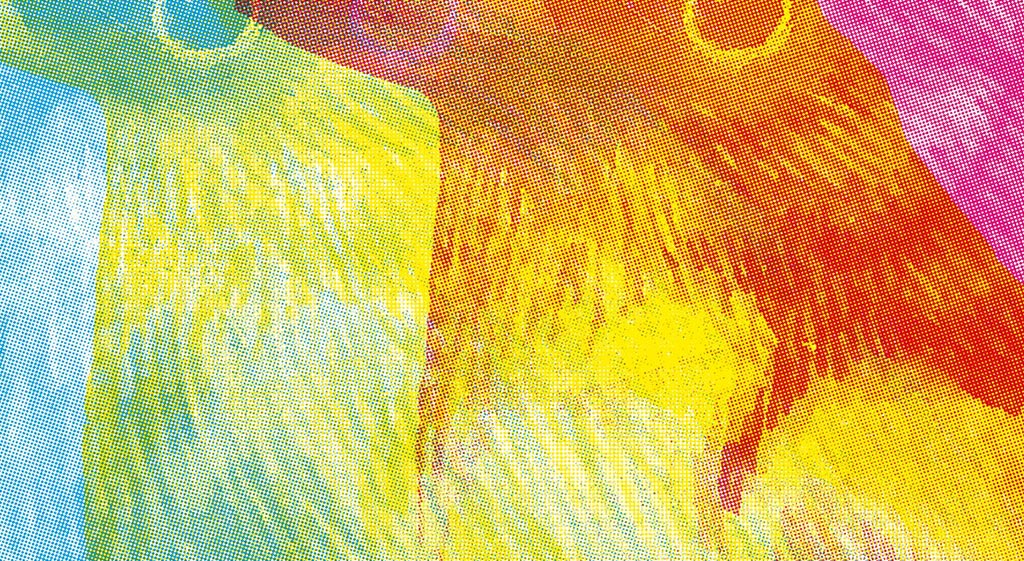
ATTENTION! All the films will be black, but they will have different patterns. These patterns indicate the colour they represent. You must clearly understand which colour each film represents. Later, when the screen is ready, it is advisable to write on the frame which colour each one is.
Emulsified
This step involves applying a photo-reactive emulsion onto the mesh or fabric of the screen. To do this, you must work in a dark room, using red or yellow safety light. Always avoid exposure to natural light or fluorescent or bulb light.
Mode of application:
- The frame should be tilted at 45º. Apply one coat of emulsion on the outer side of the screen and two on the inner side. Always in this order. Use a squeegee to distribute the emulsion evenly and create a uniform film.
- Place the frame horizontally, with the outer side (the printed side) facing downwards to achieve a thin layer of emulsion.
- Let the screen dry in this position for 24 hours at a temperature of 25-35 ºC and a maximum relative humidity of 50%. We recommend removing overnight moisture with a drying flash.
Insolation
Remember that you are still working in a dark room. Now you must place the film positive on the outer side of the screen inside the exposure unit. Ensure that the film positive is in contact with the screen. The emulsion is a light-sensitive product, so the entire screen should be exposed to light except for the dark part of the film positive.
Turn on the exposure unit and expose the screen to light to achieve the development. It is important that the exposure is done for the correct amount of time. Insufficient time will result in weak designs, while excessive time could obscure the finer details or make development impossible.
Carry out this process for each film. Remember that if you are screen printing on a light base, you need to make 4 screens, and if it is on a dark base, it will be a total of 5 screens.
Recommendation! It can be exposed with natural or artificial light, but it is better to use an exposure unit to ensure perfect light exposure.
Developing
This step is also carried out in a dark room. To develop the image, remove the frame from the exposure unit and gently wash both sides of the screen with a stream of water until the design becomes visible.
Next, with increased pressure, wash the outer side of the screen until all the unexposed emulsion is removed. Allow the screen to dry at room temperature, using fans or in a drying cabinet. Once it is completely dry, apply adhesive tape to the edges to prevent ink from seeping through the frame and mesh joint.
Carry out this process for each of the screens. Remember to write the name of the colour that this screen represents on the side of the frame, so you won't make any mistakes when screen printing.
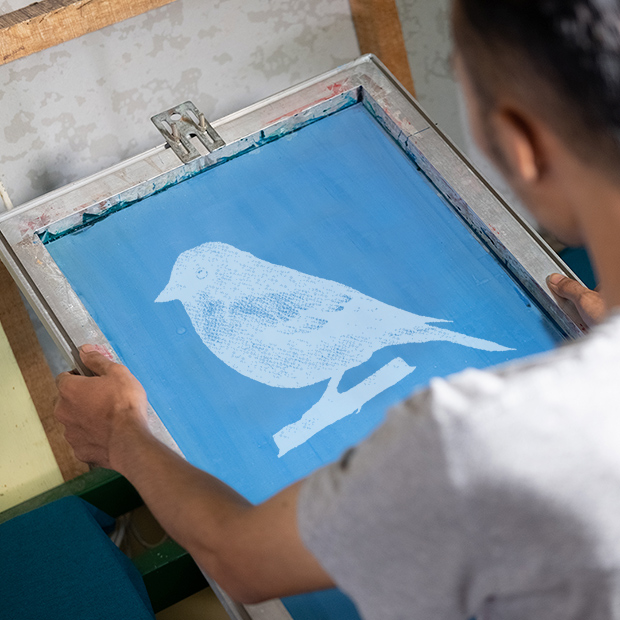
Let's screen print!
You already have the screens ready, so... it's time to print!
1. Secure the object on the machine's base. If it's a textile, you can use an adhesive spray. If it's a rigid object, you can create guides on the base to prevent it from moving.
2. Arrange the screens. The order in which the colours are printed is very important in this technique.
- For light bases: yellow, blue, magenta, black
- For dark bases: white, yellow, blue, magenta, black
3. Place the first screen on the surface you wish to print on, and prepare your squeegee. The squeegee has a rubber blade which can vary in different hardness levels depending on the type of screen printing work you are going to perform.
4. Apply a small amount of the appropriate ink. You should do this horizontally at the top of the screen.
5. Spread the ink while applying pressure along the screen using the squeegee. Glide the ink with a continuous motion, covering the entire design.
6. You have completed the first print. Now dry the ink with a heat gun until it is dry and repeat the same process with each colour.
You will see that as you print each ink, the image will start to take shape and all the colours of the image you selected from the Internet will appear.
The final step, and a very important one, is to cure the inks to ensure perfect adhesion and maximum durability. It is not enough to dry at room temperature. You must use a flash dryer, a transfer press, or a drying tunnel. The goal is for the print to reach the specified temperature for the time recommended by the manufacturer.
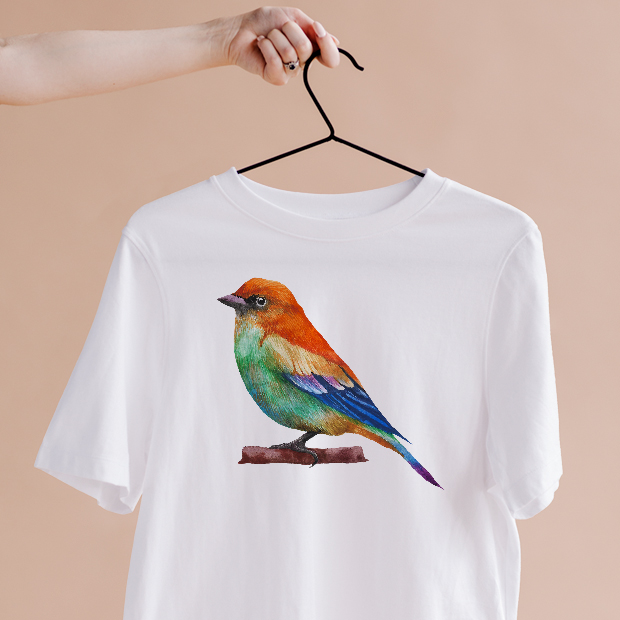
Inspiration
This technique requires a lot of preparation time for the files, screen development, and production. For this reason, it is not recommended if you are only going to make one product. However, you can produce different runs with the already developed screens.
Change the order of the plates and you will achieve a different design with other colours. You can also ignore the registration marks to create a more artistic, "dynamic" design. Use just one of them and print series in the same colour. Or if you have other inks, you can combine different colours. We have prepared this Pinterest board for you to get inspired with ideas from other professionals.
Follow the Brildor's Thermos and Bottles board on Pinterest.
Frequently Asked Questions
🤔 How to separate CMYK colours for screen printing? Before starting to create the four-colour process for screen printing, consider the final substrate, whether it is light or dark. Then separate the colours by following these steps: create a new document in Photoshop. Select and adjust the image. Go to channels and select "Split Channels". In the Cyan document, go to the menu: Image > Mode > Bitmap. In the new Halftone Screen window, select the line frequency, angle, and shape. Navigate to the menu: Image > Mode > Grayscale > Size Ratio > 1. Save and rename the documents with the colour name.
✋ How many screens are needed for four-colour process screen printing? If the textile or rigid material to be screen printed is light, we will work with four screens. If it is dark, we will work with five screens as we add white to create the base.
🤩 What can be done with screen printing four-colour process? You can create different runs with the already exposed screens. Change the order of the screens and you will get a different design with other colours. You can also ignore the registration marks to create a more artistic, "shifted" design. Use just one of them and print series in the same colour. Or if you have other inks, you can combine different colours.
Did you like it? Now you can practise and experiment with this printing method. If you have any questions, share them with us in the comments. Our team will be delighted to provide you with answers and assistance. You can also contact our Customer Service department directly for additional help.
Remember that on our social media platforms, we post a wide range of ideas, offers, and the latest news related to various personalisation techniques daily. To stay updated with everything, follow us on Instagram and TikTok. And don't forget to subscribe to our YouTube channel to keep learning with us!
👇 Other articles that may be of interest to you:
Printing photocopies for little money and from your own workshop
Screen Printing: First Steps For Beginners
WE WANT TO KNOW WHAT YOU THINK
You may also like